> ## Documentation Index
> Fetch the complete documentation index at: https://docs.pureclarity.com/llms.txt
> Use this file to discover all available pages before exploring further.
# Magento 2.x - Default Zone Installation
> Quick setup guide for installing default PureClarity zones across your Magento store pages
PureClarity provides a set of default zones that can be quickly installed across your Magento store to get personalization up and running immediately.
## Accessing Zone Installation
On the PureClarity Dashboard page in Magento, locate the "Zones" box on the right side:
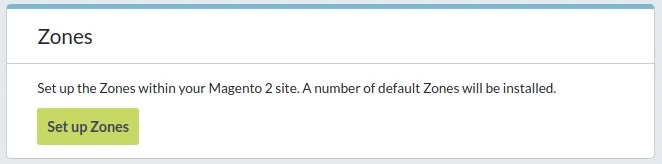 Click the **"Set up Zones"** button to open the installation popup.
## Installation Process
The "Install PureClarity Zones" popup allows you to configure zones for your active theme:
Click the **"Set up Zones"** button to open the installation popup.
## Installation Process
The "Install PureClarity Zones" popup allows you to configure zones for your active theme:
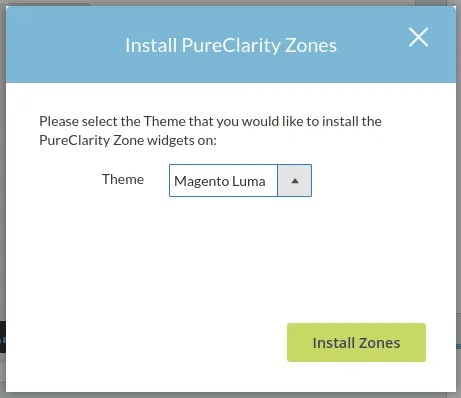 Ensure you select the correct active theme for your store in the "Theme" dropdown before proceeding.
1. Select your **active theme** from the dropdown
2. Click **"Install Zones"** to begin the process
3. Review the installation status and generated Zone IDs
## Default Zone Locations
The automatic installation creates zones across four key page types:
### Home Page
* **HP-01** (content.top)
* **HP-02** (content.bottom)
* **HP-03** (content.bottom)
* **HP-04** (content.bottom)
### Product Page
* **PP-01** (content.bottom)
* **PP-02** (content.bottom)
### Basket Page
* **BP-01** (content.bottom)
* **BP-02** (content.bottom)
### Order Confirmation Page
* **OC-01** (content.bottom)
* **OC-02** (content.bottom)
Each Zone ID corresponds to the same Zone ID in your PureClarity Admin dashboard. Zones will only display content once you have created and enabled campaigns in the PureClarity admin.
## Cache Clearing Required
After installation, you must clear the following Magento caches for zones to appear on your frontend:
* **Layouts**
* **Blocks HTML output**
* **Page Cache**
You can clear these caches from the Magento Admin under System > Tools > Cache Management, or via command line: `php bin/magento cache:clean layout block_html full_page`
## Custom Zone Setup
Beyond the default zones, you can add custom zones using two methods:
### Widget-Based Zones
For detailed instructions on creating zones using Magento widgets, see [Adding Zones Using Widgets](/integrations/magento/magento-2/adding-zones-widgets).
### HTML-Based Zones
For manual HTML implementation, see [Adding Zones Using HTML](/integrations/magento/magento-2/adding-zones-html).
Zones will remain invisible until you create and activate campaigns in the PureClarity admin dashboard that target these specific zone locations.
Ensure you select the correct active theme for your store in the "Theme" dropdown before proceeding.
1. Select your **active theme** from the dropdown
2. Click **"Install Zones"** to begin the process
3. Review the installation status and generated Zone IDs
## Default Zone Locations
The automatic installation creates zones across four key page types:
### Home Page
* **HP-01** (content.top)
* **HP-02** (content.bottom)
* **HP-03** (content.bottom)
* **HP-04** (content.bottom)
### Product Page
* **PP-01** (content.bottom)
* **PP-02** (content.bottom)
### Basket Page
* **BP-01** (content.bottom)
* **BP-02** (content.bottom)
### Order Confirmation Page
* **OC-01** (content.bottom)
* **OC-02** (content.bottom)
Each Zone ID corresponds to the same Zone ID in your PureClarity Admin dashboard. Zones will only display content once you have created and enabled campaigns in the PureClarity admin.
## Cache Clearing Required
After installation, you must clear the following Magento caches for zones to appear on your frontend:
* **Layouts**
* **Blocks HTML output**
* **Page Cache**
You can clear these caches from the Magento Admin under System > Tools > Cache Management, or via command line: `php bin/magento cache:clean layout block_html full_page`
## Custom Zone Setup
Beyond the default zones, you can add custom zones using two methods:
### Widget-Based Zones
For detailed instructions on creating zones using Magento widgets, see [Adding Zones Using Widgets](/integrations/magento/magento-2/adding-zones-widgets).
### HTML-Based Zones
For manual HTML implementation, see [Adding Zones Using HTML](/integrations/magento/magento-2/adding-zones-html).
Zones will remain invisible until you create and activate campaigns in the PureClarity admin dashboard that target these specific zone locations.