> ## Documentation Index
> Fetch the complete documentation index at: https://docs.pureclarity.com/llms.txt
> Use this file to discover all available pages before exploring further.
# Magento 2.x Free Trial Signup
> Step-by-step guide to signing up for a PureClarity free trial through the Magento 2.x extension
## Setting up an account
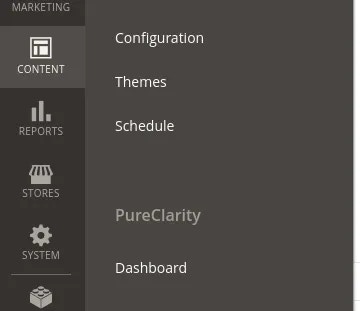
After [installing the PureClarity extension](/integrations/magento/magento-2/installation), navigate to your Magento admin panel. You should see a notification banner at the top of any page and a new menu item under the "Content" menu.
Click either the notification link or the menu item to access the PureClarity Dashboard page:
 You can also access this page by navigating to **Content > PureClarity > Dashboard** in the main menu.
 ## Signup page
When you visit the dashboard page for the first time, you'll see the PureClarity signup form with marketing information:
## Signup page
When you visit the dashboard page for the first time, you'll see the PureClarity signup form with marketing information:
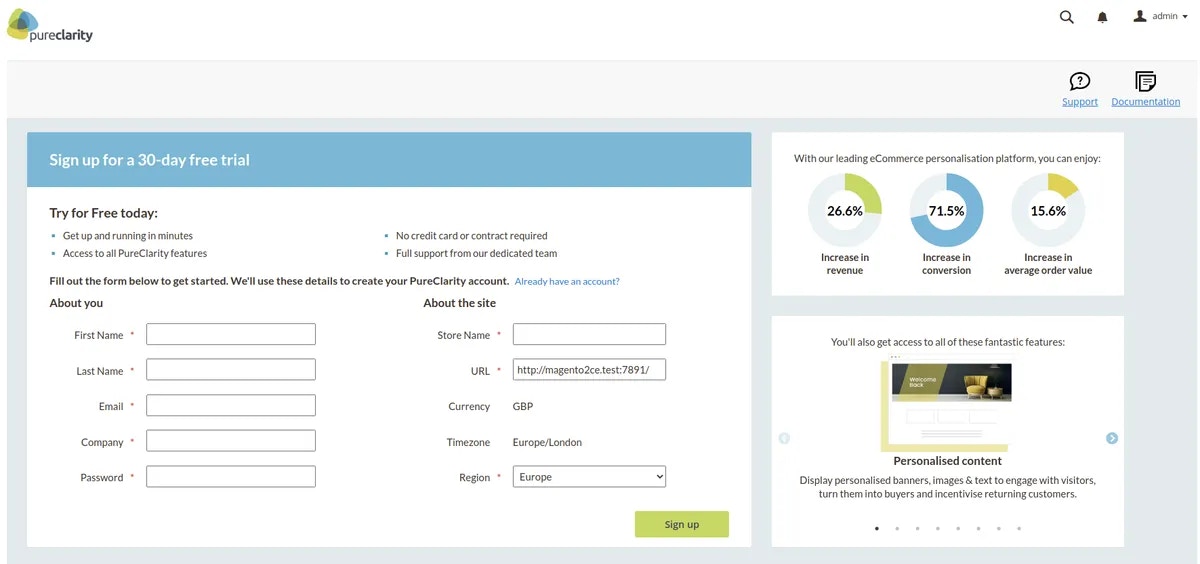 This page requires basic details to set up your PureClarity account.
## Multi-Store Configuration
If you have multiple store views configured in Magento, a dropdown selector will appear at the top of the page.
This page requires basic details to set up your PureClarity account.
## Multi-Store Configuration
If you have multiple store views configured in Magento, a dropdown selector will appear at the top of the page.
 Choose the store view you wish to configure with PureClarity before submitting the form.
## Signup form details
The signup form contains two main sections:
### About You
Personal details for the account owner (used for PureClarity admin login):
* **First Name & Last Name** - Name of the user creating the account
* **Email** - Will be used for PureClarity admin login credentials
* **Company** - The name of the company that owns the website
* **Password** - Password for accessing the PureClarity admin dashboard
### About the Site
Store configuration details:
* **Store Name** - A descriptive name for your store
* **URL** - The base URL for this store
* **Currency** - Store currency (automatically detected from Magento)
* **Timezone** - Store timezone (automatically detected from Magento)
* **Region** - PureClarity server region for optimal performance
## Account Processing
When you submit the form, PureClarity processes your request (usually within a couple of minutes). The page will display a "Setting up account" status:
Choose the store view you wish to configure with PureClarity before submitting the form.
## Signup form details
The signup form contains two main sections:
### About You
Personal details for the account owner (used for PureClarity admin login):
* **First Name & Last Name** - Name of the user creating the account
* **Email** - Will be used for PureClarity admin login credentials
* **Company** - The name of the company that owns the website
* **Password** - Password for accessing the PureClarity admin dashboard
### About the Site
Store configuration details:
* **Store Name** - A descriptive name for your store
* **URL** - The base URL for this store
* **Currency** - Store currency (automatically detected from Magento)
* **Timezone** - Store timezone (automatically detected from Magento)
* **Region** - PureClarity server region for optimal performance
## Account Processing
When you submit the form, PureClarity processes your request (usually within a couple of minutes). The page will display a "Setting up account" status:
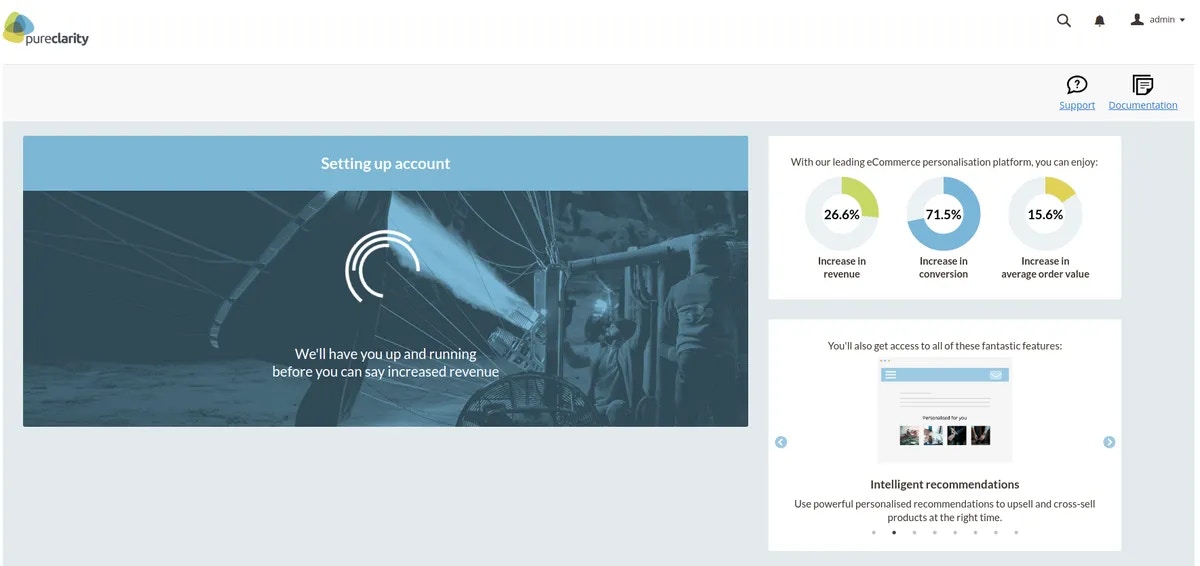 You can stay on this page to see real-time updates, or navigate away. A background process will automatically complete the configuration once your account is ready.
## Automatic Configuration
Once PureClarity creates your account, the following configuration happens automatically:
### Extension Configuration
* Module enabled
* Access key configured
* Secret key configured
* Daily feeds enabled
* Data indexing enabled
### Data Feed Setup
Initial data feeds are requested for:
* Products
* Categories
* Users
* Historic order information
## Completion
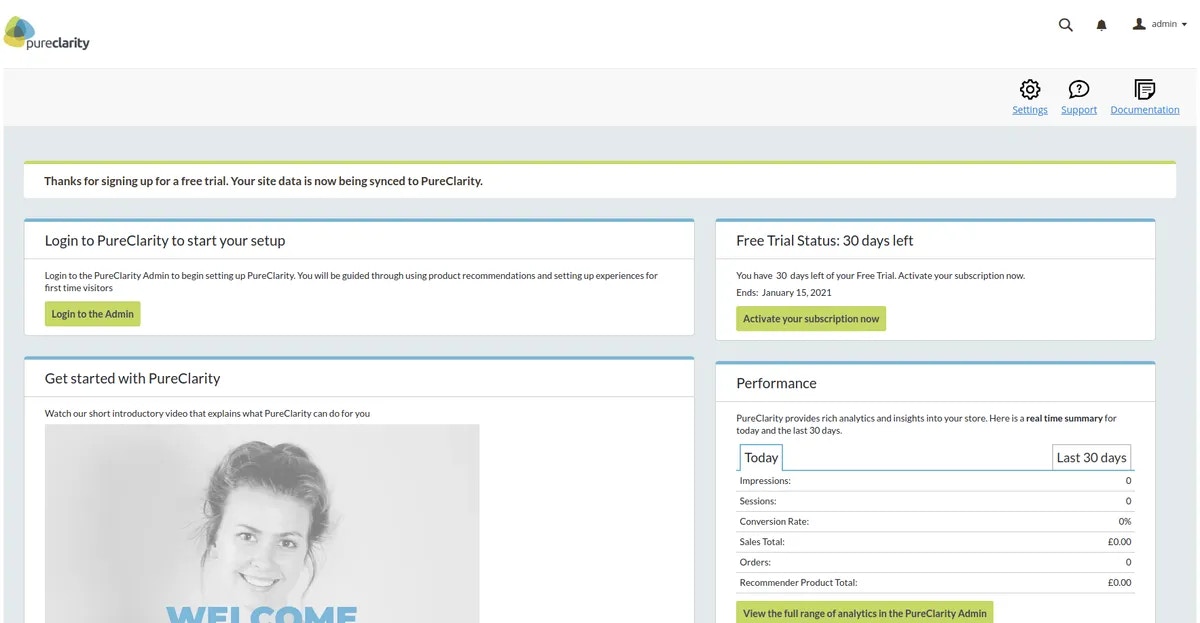
After successful setup, the dashboard updates to show the standard PureClarity control panel:
You can stay on this page to see real-time updates, or navigate away. A background process will automatically complete the configuration once your account is ready.
## Automatic Configuration
Once PureClarity creates your account, the following configuration happens automatically:
### Extension Configuration
* Module enabled
* Access key configured
* Secret key configured
* Daily feeds enabled
* Data indexing enabled
### Data Feed Setup
Initial data feeds are requested for:
* Products
* Categories
* Users
* Historic order information
## Completion
After successful setup, the dashboard updates to show the standard PureClarity control panel:
 [Learn more about the PureClarity Magento Dashboard](/integrations/magento/magento-2/dashboard) to explore all available features and settings.