> ## Documentation Index
> Fetch the complete documentation index at: https://docs.pureclarity.com/llms.txt
> Use this file to discover all available pages before exploring further.
# Magento 2.x - Linking an Existing Store
> How to connect an existing PureClarity store to a new Magento 2.x installation
If you already have a PureClarity store and want to connect it to a different Magento installation (for example, moving from a test site to production), you can link your existing account instead of creating a new one.
This process is ideal when migrating from a development environment to production or when switching Magento installations for the same store.
## Starting the Link Process
On the signup page, click the "Link an existing account" link above the signup form:
 This opens the Link Account form where you should select **"Link an existing PureClarity Store"**:
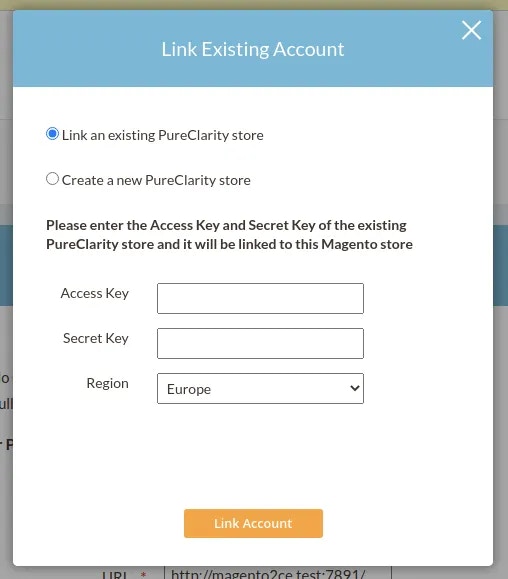 Do not select "Create a new PureClarity store" as this will create a separate store instead of linking your existing one. For information about adding additional stores, see [Adding Another Store](/integrations/magento/magento-2/adding-another-store).
## Required Information
To link your existing store, you'll need the following credentials from your PureClarity account:
1. **AccessKey** - Your store's unique access identifier
2. **SecretKey** - Your store's secret authentication key
3. **Region** - Choose between USA or Europe based on your account setup
### Finding Your Credentials
You can locate these credentials in the PureClarity admin dashboard:
1. Navigate to **My Account > Integration**
2. Copy the AccessKey and SecretKey values
For security reasons, never share your SecretKey with unauthorized personnel. This key provides full access to your PureClarity store data.
## Verification and Configuration
When you submit the form, PureClarity verifies your credentials. If valid, your Magento store is automatically configured with the following settings:
### Extension Configuration
* Module enabled
* Access Key configured
* Secret Key configured
* Daily feeds enabled
* Data indexing enabled
### Data Synchronization
Initial data feeds are automatically requested for:
* Products
* Categories
* Users
* Historic order information
After successful linking, your existing PureClarity campaigns, segments, and configurations will be available in this Magento installation.
## Next Steps
Once linking is complete, your Magento dashboard will display the standard PureClarity interface with all your existing store data and configurations. You can immediately begin using your established campaigns and personalization settings on the new Magento installation.
Do not select "Create a new PureClarity store" as this will create a separate store instead of linking your existing one. For information about adding additional stores, see [Adding Another Store](/integrations/magento/magento-2/adding-another-store).
## Required Information
To link your existing store, you'll need the following credentials from your PureClarity account:
1. **AccessKey** - Your store's unique access identifier
2. **SecretKey** - Your store's secret authentication key
3. **Region** - Choose between USA or Europe based on your account setup
### Finding Your Credentials
You can locate these credentials in the PureClarity admin dashboard:
1. Navigate to **My Account > Integration**
2. Copy the AccessKey and SecretKey values
For security reasons, never share your SecretKey with unauthorized personnel. This key provides full access to your PureClarity store data.
## Verification and Configuration
When you submit the form, PureClarity verifies your credentials. If valid, your Magento store is automatically configured with the following settings:
### Extension Configuration
* Module enabled
* Access Key configured
* Secret Key configured
* Daily feeds enabled
* Data indexing enabled
### Data Synchronization
Initial data feeds are automatically requested for:
* Products
* Categories
* Users
* Historic order information
After successful linking, your existing PureClarity campaigns, segments, and configurations will be available in this Magento installation.
## Next Steps
Once linking is complete, your Magento dashboard will display the standard PureClarity interface with all your existing store data and configurations. You can immediately begin using your established campaigns and personalization settings on the new Magento installation.