> ## Documentation Index
> Fetch the complete documentation index at: https://docs.pureclarity.com/llms.txt
> Use this file to discover all available pages before exploring further.
# WooCommerce Dashboard Overview
> Complete guide to the PureClarity WooCommerce plugin dashboard features, display modes, and navigation
This dashboard appears after your PureClarity account is configured and connected to your WooCommerce store. Make sure you've completed the account setup process first.
## Dashboard Overview
Once PureClarity signup is completed and your store is configured, the dashboard displays next steps, data feed information, and access to help resources:
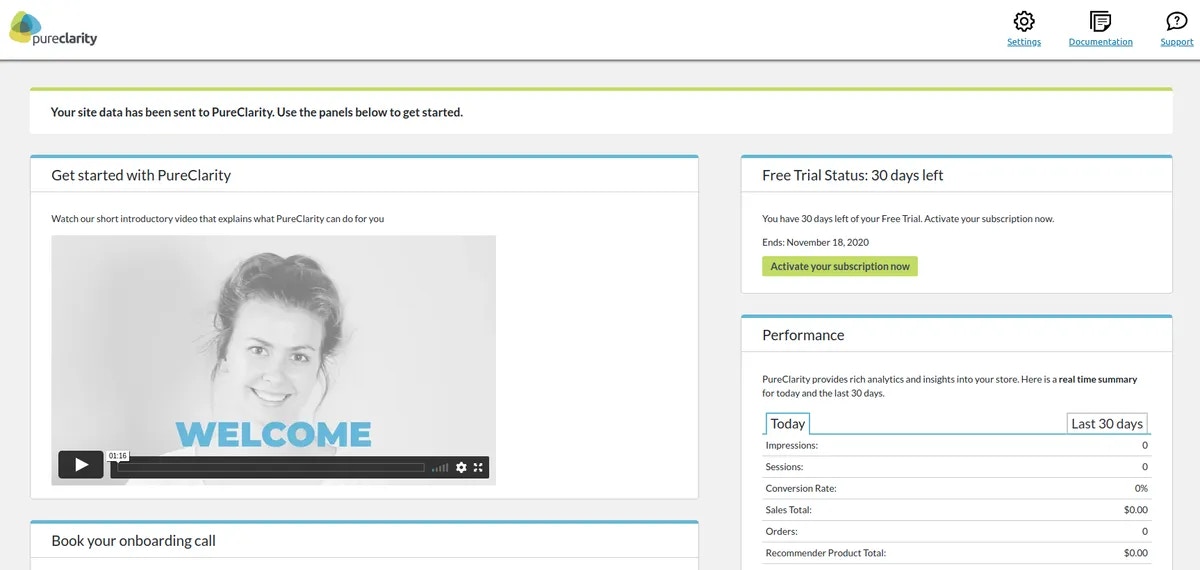 ## Header Navigation Bar
 The header bar provides quick access to essential features:
### Navigation Links
1. **Settings** - Access the PureClarity plugin settings page
2. **Documentation** - Open the complete plugin documentation
3. **Support** - Pre-filled support email to [support@pureclarity.com](mailto:support@pureclarity.com)
The support link automatically includes your site configuration details to help our team assist you faster.
## Display Mode Configuration
The header bar provides quick access to essential features:
### Navigation Links
1. **Settings** - Access the PureClarity plugin settings page
2. **Documentation** - Open the complete plugin documentation
3. **Support** - Pre-filled support email to [support@pureclarity.com](mailto:support@pureclarity.com)
The support link automatically includes your site configuration details to help our team assist you faster.
## Display Mode Configuration
 Control how visitors experience PureClarity on your site:
### Available Modes
**Live Mode**
* Every visitor sees personalized recommendations
* Full production experience active
* Real-time personalization for all users
**Test Mode**
* Only administrators see recommendations
* Perfect for testing and configuration
* Live users see normal store without PureClarity
**Disabled Mode**
* No recommendations displayed to anyone
* PureClarity completely hidden from frontend
* Data collection continues in background
Switching to Test or Disabled mode will hide recommendations from your customers. Only use these modes when testing or troubleshooting.
## Data Feeds Status
Monitor your store's data synchronization:
### Feed Types Tracked
* **Product Data** - Catalog synchronization status
* **Category Data** - Product organization updates
* **User Data** - Customer information sync
* **Order History** - Transaction data processing
### Status Indicators
* ✅ **Active** - Feed running successfully
* ⚠️ **Pending** - Feed scheduled or processing
* ❌ **Error** - Feed failed, requires attention
Data feeds typically process automatically. Check the [feed status guide](/integrations/woocommerce/data-feeds) if you notice any errors.
## Quick Actions
### Configuration Tasks
* Review [zone placement](/integrations/woocommerce/zones)
* Configure [plugin settings](/integrations/woocommerce/settings)
* Set up [data feed schedules](/integrations/woocommerce/data-feeds)
### Monitoring Tasks
* Check recommendation performance
* Monitor data synchronization
* Review customer engagement metrics
## Next Steps
After reviewing your dashboard:
1. **Test recommendations** - Switch to Test mode to preview personalization
2. **Configure zones** - Set up recommendation placements
3. **Customize settings** - Adjust plugin behavior for your needs
4. **Monitor performance** - Track engagement and conversion improvements
## Troubleshooting Dashboard Issues
If your dashboard isn't displaying correctly:
* Verify account credentials are correct
* Check plugin activation status
* Ensure data feeds are processing
* Review [troubleshooting guide](/integrations/woocommerce/troubleshooting)
## Related Resources
* [WooCommerce Settings Configuration](/integrations/woocommerce/settings)
* [Managing Data Feeds](/integrations/woocommerce/data-feeds)
* [Zone Setup and Placement](/integrations/woocommerce/zones)
* [Troubleshooting Common Issues](/integrations/woocommerce/troubleshooting)
Control how visitors experience PureClarity on your site:
### Available Modes
**Live Mode**
* Every visitor sees personalized recommendations
* Full production experience active
* Real-time personalization for all users
**Test Mode**
* Only administrators see recommendations
* Perfect for testing and configuration
* Live users see normal store without PureClarity
**Disabled Mode**
* No recommendations displayed to anyone
* PureClarity completely hidden from frontend
* Data collection continues in background
Switching to Test or Disabled mode will hide recommendations from your customers. Only use these modes when testing or troubleshooting.
## Data Feeds Status
Monitor your store's data synchronization:
### Feed Types Tracked
* **Product Data** - Catalog synchronization status
* **Category Data** - Product organization updates
* **User Data** - Customer information sync
* **Order History** - Transaction data processing
### Status Indicators
* ✅ **Active** - Feed running successfully
* ⚠️ **Pending** - Feed scheduled or processing
* ❌ **Error** - Feed failed, requires attention
Data feeds typically process automatically. Check the [feed status guide](/integrations/woocommerce/data-feeds) if you notice any errors.
## Quick Actions
### Configuration Tasks
* Review [zone placement](/integrations/woocommerce/zones)
* Configure [plugin settings](/integrations/woocommerce/settings)
* Set up [data feed schedules](/integrations/woocommerce/data-feeds)
### Monitoring Tasks
* Check recommendation performance
* Monitor data synchronization
* Review customer engagement metrics
## Next Steps
After reviewing your dashboard:
1. **Test recommendations** - Switch to Test mode to preview personalization
2. **Configure zones** - Set up recommendation placements
3. **Customize settings** - Adjust plugin behavior for your needs
4. **Monitor performance** - Track engagement and conversion improvements
## Troubleshooting Dashboard Issues
If your dashboard isn't displaying correctly:
* Verify account credentials are correct
* Check plugin activation status
* Ensure data feeds are processing
* Review [troubleshooting guide](/integrations/woocommerce/troubleshooting)
## Related Resources
* [WooCommerce Settings Configuration](/integrations/woocommerce/settings)
* [Managing Data Feeds](/integrations/woocommerce/data-feeds)
* [Zone Setup and Placement](/integrations/woocommerce/zones)
* [Troubleshooting Common Issues](/integrations/woocommerce/troubleshooting)