> ## Documentation Index
> Fetch the complete documentation index at: https://docs.pureclarity.com/llms.txt
> Use this file to discover all available pages before exploring further.
# Setting Up Your PureClarity Account
> How to create a new PureClarity account or link an existing account using the WooCommerce plugin
Before setting up your account, ensure you have the PureClarity WooCommerce plugin installed and activated. You'll need admin access to your WordPress/WooCommerce site.
## Creating a New Account
When you click on the PureClarity menu and haven't signed up yet, you'll see the signup form:
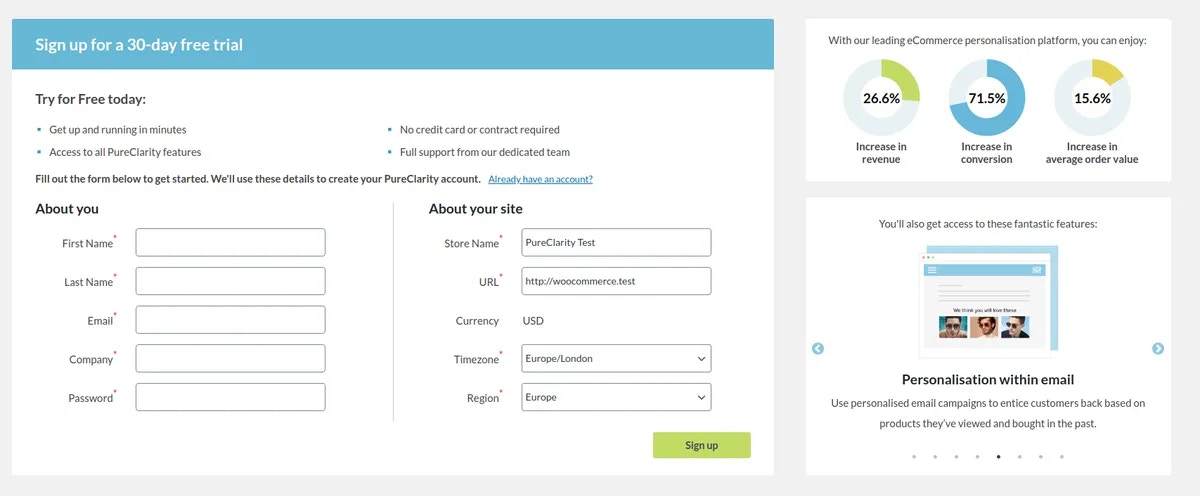 This form enables you to sign up for a free-trial account with PureClarity. Fill in the required basic details:
* **Store Name** - Your business/store name
* **Email Address** - Your business email
* **First & Last Name** - Your contact details
* **Phone Number** - For account verification
* **Country** - Your business location
Choose your details carefully as they'll be used for account configuration and support communications.
### Account Processing
When you submit the form:
1. **Request submitted** - Your details are sent to PureClarity for processing
2. **Processing time** - Usually completed within a couple of minutes
3. **Automatic configuration** - If you stay on the waiting page, your WooCommerce site will be configured automatically
4. **Background setup** - If you navigate away, a background process will complete the configuration
## Linking an Existing Account
If you already have a PureClarity account, click the "Link existing account" option above the signup form:
This form enables you to sign up for a free-trial account with PureClarity. Fill in the required basic details:
* **Store Name** - Your business/store name
* **Email Address** - Your business email
* **First & Last Name** - Your contact details
* **Phone Number** - For account verification
* **Country** - Your business location
Choose your details carefully as they'll be used for account configuration and support communications.
### Account Processing
When you submit the form:
1. **Request submitted** - Your details are sent to PureClarity for processing
2. **Processing time** - Usually completed within a couple of minutes
3. **Automatic configuration** - If you stay on the waiting page, your WooCommerce site will be configured automatically
4. **Background setup** - If you navigate away, a background process will complete the configuration
## Linking an Existing Account
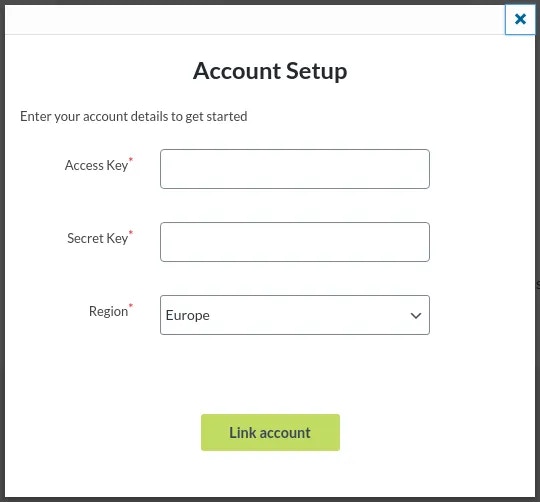
If you already have a PureClarity account, click the "Link existing account" option above the signup form:
 ### Required Credentials
You'll need the following keys from your existing PureClarity account:
1. **AccessKey** - Your unique access identifier
2. **SecretKey** - Your secure authentication key
Keep your SecretKey confidential and never share it publicly. It provides full access to your PureClarity account.
### Finding Your Keys
To locate your keys:
1. Log into your **PureClarity Admin**
2. Navigate to **My Account > Integration**
3. Copy your AccessKey and SecretKey
4. Select your **region** (USA / Europe / UK)
Your region selection must match where your PureClarity application is hosted for proper connectivity.
## Next Steps
After successful account setup or linking:
* Configure your [WooCommerce zones](/integrations/woocommerce/zones)
* Set up [data feeds](/integrations/woocommerce/data-feeds)
* Review [dashboard overview](/integrations/woocommerce/dashboard-overview)
* Explore [plugin settings](/integrations/woocommerce/settings)
## Troubleshooting
If you encounter issues during setup:
* Verify your internet connection
* Check that the plugin is properly activated
* Ensure your email address is valid and accessible
* Contact [support@pureclarity.com](mailto:support@pureclarity.com) if problems persist
See [WooCommerce troubleshooting](/integrations/woocommerce/troubleshooting) for additional help.
### Required Credentials
You'll need the following keys from your existing PureClarity account:
1. **AccessKey** - Your unique access identifier
2. **SecretKey** - Your secure authentication key
Keep your SecretKey confidential and never share it publicly. It provides full access to your PureClarity account.
### Finding Your Keys
To locate your keys:
1. Log into your **PureClarity Admin**
2. Navigate to **My Account > Integration**
3. Copy your AccessKey and SecretKey
4. Select your **region** (USA / Europe / UK)
Your region selection must match where your PureClarity application is hosted for proper connectivity.
## Next Steps
After successful account setup or linking:
* Configure your [WooCommerce zones](/integrations/woocommerce/zones)
* Set up [data feeds](/integrations/woocommerce/data-feeds)
* Review [dashboard overview](/integrations/woocommerce/dashboard-overview)
* Explore [plugin settings](/integrations/woocommerce/settings)
## Troubleshooting
If you encounter issues during setup:
* Verify your internet connection
* Check that the plugin is properly activated
* Ensure your email address is valid and accessible
* Contact [support@pureclarity.com](mailto:support@pureclarity.com) if problems persist
See [WooCommerce troubleshooting](/integrations/woocommerce/troubleshooting) for additional help.